Best Laptop For Work Choices That Boost Productivity Daily
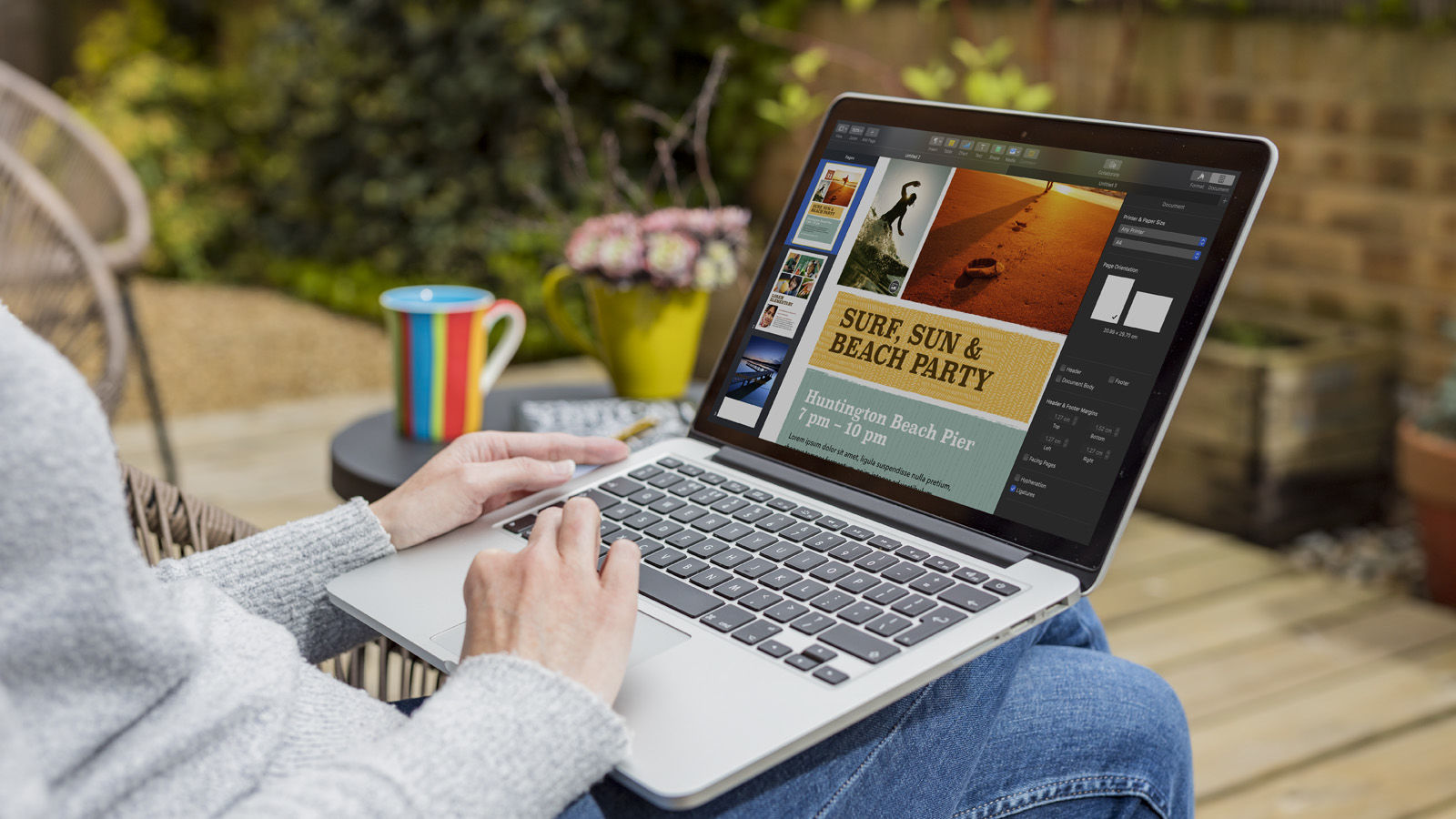
The search for the best laptop for work often begins with a simple question: What will make your daily tasks smoother, faster, and more efficient? In an era where remote work and hybrid schedules dominate, the ideal work laptop transcends mere specifications—it becomes a silent partner in productivity, collaboration, and creativity. Whether you’re crunching data for a presentation, editing videos for a client, or simply drafting emails between meetings, the right device can transform hours of frustration into seamless workflows. Yet, with an overwhelming array of options flooding the market, distinguishing between a laptop that meets expectations and one that elevates performance requires more than just glancing at price tags or brand names.
Behind every high-performance laptop lies a delicate balance of hardware, software, and real-world usability. Engineers demand precision with CAD software, while marketers rely on crisp displays for presentations; developers need robust cooling for overnight code compilations, while writers prioritize ergonomic comfort for marathon typing sessions. The challenge lies in aligning these diverse needs with practical constraints—budget limits, portability requirements, and the ever-present trade-off between power and portability. This guide dissects those critical factors, from the CPU that powers your multitasking to the battery that keeps you going through back-to-back Zoom calls, ensuring you make an informed choice that aligns with your professional demands.
Understanding the Needs: What Defines the "Best" Work Laptop?

The quest for the best laptop for work begins with a fundamental question: what does "best" even mean? Unlike consumer-grade devices designed for entertainment, work laptops must align with specific functional demands—whether it’s handling complex software, enduring daily wear-and-tear, or seamlessly integrating into hybrid work environments. The answer varies drastically depending on the user’s role, workflow, and priorities. For a software developer, raw processing power and thermal efficiency may reign supreme, while a digital marketer might prioritize portability and battery life for client meetings. To navigate this complexity, users must first dissect their needs into four core pillars: productivity, portability, durability, and connectivity. These pillars serve as the foundation for a structured decision-making process, ensuring that the chosen device not only meets current requirements but also adapts to future challenges.
Core Functionalities: The Four Pillars of Work Laptop Performance

Work laptops are not one-size-fits-all; they must balance four critical functionalities that directly impact user satisfaction and efficiency. Understanding these pillars allows professionals to prioritize features that matter most to their specific use cases, avoiding costly compromises or regrets down the line.
Productivity refers to the laptop’s ability to execute tasks efficiently without bottlenecks. This includes: - Processor and RAM: A quad-core or higher CPU (e.g., Intel Core i7/i9 or AMD Ryzen 7/9) paired with 16GB+ RAM is ideal for multitasking, while 32GB+ becomes necessary for memory-intensive applications like video editing or 3D rendering. - Storage: SSD (PCIe NVMe) is non-negotiable for speed, with 512GB–1TB being the sweet spot for most professionals. Some roles, such as data scientists, may require 2TB+ for large datasets. - Graphics: Integrated graphics (e.g., Intel Iris Xe) suffice for office tasks, but dedicated GPUs (e.g., NVIDIA RTX or AMD Radeon Pro) are essential for graphic designers, engineers, or AI workloads. - Keyboard and Trackpad: A backlit, spill-resistant keyboard with 1.5mm+ key travel (e.g., Apple Magic Keyboard or Lenovo ThinkPad Ultrabook) enhances typing speed, while a precision trackpad reduces reliance on external mice.
Portability addresses the physical and logistical constraints of a laptop’s form factor. Key considerations include: - Weight and Thickness: Ultrabooks (under 1.5kg/3.3lbs) are favored by frequent travelers, while 13–14-inch displays strike a balance between screen real estate and portability. - Battery Life: 8–12 hours of real-world use is standard for modern laptops, but roles like remote fieldwork may demand 15+ hours (e.g., Dell XPS 15 or HP Spectre x360). - Build Quality: Military-grade (MIL-STD-810G) ratings ensure durability against drops, spills, or dust, critical for roles like construction site inspections or outdoor journalism.
Durability encompasses both physical resilience and long-term reliability. This includes: - Material and Construction: Magnesium alloy or carbon fiber chassis (e.g., Microsoft Surface Laptop, Razer Blade) offer a premium feel, while rubberized edges prevent accidental damage. - Thermal Management: Passive cooling (e.g., vapor chambers in MacBooks) or dual-fan systems (e.g., ASUS ROG Zephyrus) prevent throttling during sustained workloads. - Repairability: Devices with user-serviceable batteries or RAM (e.g., Framework Laptop) extend lifespan and reduce e-waste.
Table of Contents
- Understanding the Needs: What Defines the "Best" Work Laptop?
- Core Functionalities: The Four Pillars of Work Laptop Performance
- Decision-Making Flowchart: Self-Assessing Work Laptop Needs
- Comparison Table: Task-Specific Laptop Requirements
- Performance Deep Dive: CPU, GPU, RAM, and Storage in Work Laptops
- CPU Architectures: Intel Core i9 vs. AMD Ryzen 9 in Workload-Specific Benchmarks
- GPU Role in Work Laptops: Integrated vs. Dedicated for Non-Gaming Tasks
- RAM and Storage: Workload Impact, Future-Proofing, and Budget Trade-offs
- Portability vs. Power: Balancing Size, Weight, and Battery Life in Work Laptops
- Ergonomic Trade-Offs: Ultrabooks vs. Workstations in Keyboard, Trackpad, and Cooling
- Weight and Battery Life Comparison: Real-World Performance of Top Contenders
- Display Technology: OLED vs. IPS vs. Retina and Their Impact on Battery and Visual Comfort
Connectivity ensures seamless integration into professional ecosystems, whether in-office or remote. Critical features include: - Ports: Thunderbolt 4/USB-C (for docking stations), HDMI/DisplayPort, and SD card readers (for photographers) are non-negotiable. USB-A ports remain useful for legacy peripherals. - Wireless Capabilities: Wi-Fi 6E and Bluetooth 5.2 enable faster file transfers and stable video conferencing, while 5G integration (e.g., Lenovo ThinkPad X13s) supports remote work in areas with poor Wi-Fi. - Security Features: Fingerprint readers, IR cameras (Windows Hello), and TPM 2.0 safeguard sensitive data, while privacy shutters (e.g., HP EliteBook) protect webcam use.
Decision-Making Flowchart: Self-Assessing Work Laptop Needs
Choosing the right laptop often feels like solving a puzzle with missing pieces. A structured self-assessment helps users identify their priorities and trade-offs before diving into specs. Below is a step-by-step flowchart to guide the decision-making process, from identifying primary use cases to budget constraints.
Step 1: Define Primary Use Case The first filter narrows down the laptop’s purpose. Users should ask: - Will this laptop handle a single demanding application (e.g., CAD, video editing), or will it manage multiple tasks simultaneously? - Do I need portability for travel, or is stationary use (e.g., desk-bound work) the primary concern?
Step 2: Evaluate Portability Requirements Weight and battery life often dictate the form factor. A three-tiered approach helps: - Ultraportable (Under 1.5kg): Ideal for travel-heavy professionals (consultants, journalists). Prioritize 13–14-inch displays and 10+ hour battery life. - Balanced (1.5–2.2kg): Suits hybrid workers (marketers, writers). Focus on 15–16-inch screens with 8–10 hour battery. - Power Station (2.2kg+): For stationary power users (engineers, editors). Sacrifice portability for larger keyboards, better cooling, and high-end GPUs.
Step 3: Assess Performance Needs Performance requirements vary by industry. A role-specific matrix (detailed below) helps align specs with job demands.
Step 4: Set Budget Constraints Budget dictates feature trade-offs. A realistic allocation might look like: - Under $800: Entry-level business laptops (e.g., Lenovo ThinkPad T14) with 8GB RAM, 512GB SSD, and Intel i5. - $800–$1,500: Mid-range productivity machines (e.g., MacBook Pro 14, Dell XPS 15) with 16GB RAM, 1TB SSD, and dedicated GPUs. - $1,500+: High-end workstations (e.g., HP ZBook Fury, Razer Blade 15) with 32GB+ RAM, 2TB+ SSD, and RTX GPUs.
Step 5: Identify Trade-Offs No laptop excels in every category. Common compromises include: - Thin-and-light vs. Performance: Ultrabooks (e.g., MacBook Air) sacrifice GPU power and cooling for portability. - Battery Life vs. Brightness: OLED screens (e.g., Dell XPS 13) offer vibrant displays but drain battery faster than IPS LCD. - Keyboard Quality vs. Size: Chiclet keyboards (e.g., Microsoft Surface) are compact but less tactile than mechanical-style keys (e.g., Lenovo ThinkPad).
Comparison Table: Task-Specific Laptop Requirements
Not all work roles demand the same hardware. Below is a four-column table outlining task types, key requirements, acceptable compromises, and ideal specifications to streamline the selection process.
| Task Type | Key Requirements | Compromises Users Might Accept | Ideal Specs | |||||||||||||||||||||||||||||||||||||||||||||||||||||||||||||||||||||||||||
|---|---|---|---|---|---|---|---|---|---|---|---|---|---|---|---|---|---|---|---|---|---|---|---|---|---|---|---|---|---|---|---|---|---|---|---|---|---|---|---|---|---|---|---|---|---|---|---|---|---|---|---|---|---|---|---|---|---|---|---|---|---|---|---|---|---|---|---|---|---|---|---|---|---|---|---|---|---|---|
| Software Development (Coding, Compiling) |
|
GPU Role in Work Laptops: Integrated vs. Dedicated for Non-Gaming TasksWhile dedicated GPUs dominate gaming laptops, integrated graphics (Intel Iris Xe, AMD Radeon 680M) and workstation-class GPUs (NVIDIA RTX 4050, AMD Radeon Pro 7500M) serve distinct purposes in professional environments. Integrated GPUs suffice for office applications, web browsing, and basic video playback, but dedicated GPUs unlock capabilities for 3D modeling (AutoCAD, Fusion 360), video editing (Adobe Premiere Pro), and data visualization (Tableau, Python libraries like Matplotlib). Key Differences:
RAM and Storage: Workload Impact, Future-Proofing, and Budget Trade-offsRAM and storage directly influence multitasking capacity, software responsiveness, and data access speeds. Below is a structured comparison to help prioritize upgrades based on budget and long-term needs. RAM (8GB vs. 16GB vs. 32GB): RAM bottlenecks manifest in slow application launches, excessive swapping, or crashes when running multiple VMs, IDEs (VS Code, IntelliJ), or memory-intensive databases (MySQL, PostgreSQL). | Component | Workload Impact | Future-Proofing Tips | Budget vs. Premium Options |Portability vs. Power: Balancing Size, Weight, and Battery Life in Work LaptopsThe quest for the ideal work laptop often hinges on a delicate equilibrium between mobility and performance. Ultrabooks prioritize slim profiles and lightweight designs, catering to professionals who value ease of transport over raw computational power. In contrast, workstations emphasize durability, cooling efficiency, and high-end specifications, making them better suited for demanding tasks like video editing or 3D rendering. This trade-off extends beyond physical dimensions, influencing keyboard ergonomics, display quality, and even battery longevity. Understanding these nuances ensures that users select a device that aligns with their workflow without compromising productivity or comfort during prolonged use. The choice between an ultrabook and a workstation is not merely about size but also about how design decisions impact daily usability. For instance, a 13-inch ultrabook may boast a sleek form factor but could sacrifice keyboard travel depth or trackpad responsiveness, while a 17-inch workstation might offer superior cooling and processing power at the cost of reduced portability. Below, the ergonomic trade-offs, battery dynamics, and hidden costs of prioritizing portability are dissected to provide clarity for professionals navigating this balance.Ergonomic Trade-Offs: Ultrabooks vs. Workstations in Keyboard, Trackpad, and CoolingUltrabooks and workstations represent opposing philosophies in laptop design, each with distinct strengths and weaknesses that directly affect user comfort and efficiency. Keyboard travel—the distance keys move when pressed—is a critical factor in typing speed and accuracy. Ultrabooks often feature shallow key travel (1.0–1.5mm) to maintain a slim profile, which can lead to a "mushy" feel over time, particularly during long typing sessions. Workstations, however, typically offer deeper travel (1.5–2.0mm or more), providing tactile feedback and reducing finger fatigue. For example, the MacBook Pro 16-inch (2021) delivers 1.5mm key travel with a scissor mechanism, while the Dell Precision 7760 exceeds 2.0mm with a more traditional butterfly switch, catering to professionals who prioritize typing endurance. Trackpad size and responsiveness also diverge significantly. Ultrabooks like the Lenovo ThinkPad X1 Carbon (Gen 10) feature compact yet precise trackpads (90mm x 53mm) with glass surfaces that support multi-touch gestures, ideal for touch-centric workflows. Workstations, however, often include larger trackpads (e.g., HP ZBook Studio G8: 115mm x 70mm) to accommodate stylus input or more spacious cursor movement for graphic design. The trade-off lies in portability: larger trackpads add bulk, while smaller ones may limit precision for tasks requiring intricate cursor control. Cooling airflow presents another critical distinction. Ultrabooks rely on passive cooling or low-wattage fans to maintain slim profiles, which can lead to throttling under sustained load. Workstations, such as the ASUS ProArt StudioBook 18, employ dual-fan systems with vapor chambers to dissipate heat efficiently, even during resource-intensive tasks. This difference is evident in real-world performance: a MacBook Air M1 (2020) may throttle after 20–30 minutes of rendering, whereas a Dell XPS 15 (2023) with a dedicated GPU maintains consistent temperatures for extended periods. The ergonomic cost of prioritizing cooling in workstations is increased weight and thickness, which can be prohibitive for travelers.Weight and Battery Life Comparison: Real-World Performance of Top ContendersThe relationship between weight and battery life is nonlinear; lighter laptops often sacrifice battery capacity to reduce mass, while heavier models may include larger batteries but face thermal constraints. Below is a comparative analysis of leading ultrabooks and workstations, highlighting their portability scores (a composite metric of weight, dimensions, and real-world battery performance) and how they fare in professional settings.
Display Technology: OLED vs. IPS vs. Retina and Their Impact on Battery and Visual ComfortDisplay technology plays a pivotal role in both battery efficiency and user comfort during long workdays. OLED panels excel in contrast ratios and viewing angles but consume more power due to self-emissive pixels, which require constant refresh rates. IPS displays offer consistent brightness and color accuracy with lower power consumption, making them ideal for productivity. Retina (or equivalent high-ppi) displays, such as those in MacBooks or Dell XPS laptops, enhance visual clarity but may drain battery faster if brightness is set too high. Comparative Analysis:The quest for the best laptop for work is not just about raw power or sleek design; it’s about finding the perfect harmony between your professional needs and the tools at your disposal. From understanding the subtle differences between a 16GB RAM upgrade and a dedicated GPU for video editing to weighing the ergonomic trade-offs of a 13-inch ultrabook against the processing might of a 17-inch workstation, every decision shapes your daily productivity. As technology evolves—with AI integration, foldable displays, and extended battery life redefining industry standards—the "best" laptop continues to shift. By prioritizing the features that matter most to your role, optimizing performance without sacrificing portability, and future-proofing your investment, you’re not just buying a device; you’re investing in a tool that will carry you through the demands of modern work. |
Leave a Comment
Comments are moderated before appearing. The data you submit is processed according to the Privacy Policy of Inhonorofdesign.